 SwiftLocker
How to lock photos on iPhone
iPhone has two built-in locks for photos: The Hidden album, and a lock on the whole Photos app. Both open with Face ID, Touch ID or your iPhone passcode. For a lock your passcode doesn't open, use SwiftLocker's own PIN.
Three locks, side by side
| Lock | Opens with | What it locks |
|---|---|---|
| Hidden album | Face ID, Touch ID or your iPhone passcode | The photos and videos you hide |
| Locked Photos app | Face ID, Touch ID or your iPhone passcode | The whole Photos app, on that iPhone |
| SwiftLocker | A PIN of its own, plus Face ID or Touch ID | The photos, videos and documents you move in |
Lock photos in the Hidden album
- In Photos, tap and hold a photo, then tap Hide. It moves to the Hidden album.
- Open Settings › Apps › Photos and check that Use Face ID is on (or Use Touch ID or Use Passcode). It's on by default.
- To keep the album out of sight too, turn off Show Hidden Album on the same screen.
Lock the Photos app
Since iOS 18, you can lock an app so it needs Face ID, Touch ID or your passcode to open.
- On the Home Screen, touch and hold Photos until the menu opens.
- Tap Require Face ID (or Touch ID or Passcode), then tap Require Face ID again.
- Photos now asks for Face ID, Touch ID or your passcode each time you open it. It locks again after you quit it.
What's inside a locked app doesn't show in search, notification previews or Siri suggestions. The lock applies only to that iPhone, and it doesn't sync with iCloud. Photos can be locked, but not hidden, as only apps from the App Store can be hidden.
Lock photos behind a PIN of their own
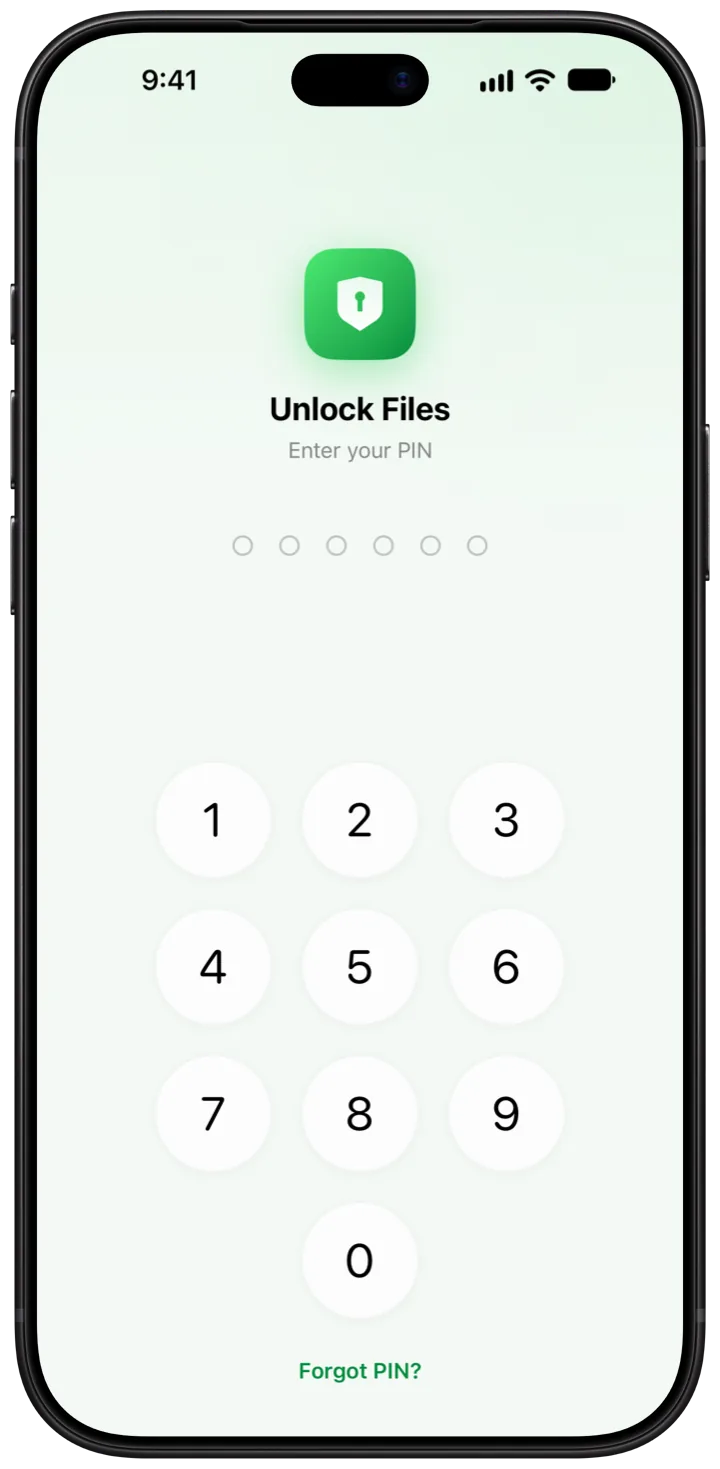
Both built-in locks open with your iPhone passcode. SwiftLocker has a PIN that's separate from it, so knowing your passcode doesn't open it.
- Open SwiftLocker and choose a PIN of 4 to 6 digits. You can add Face ID or Touch ID next, or later in Settings › Security.
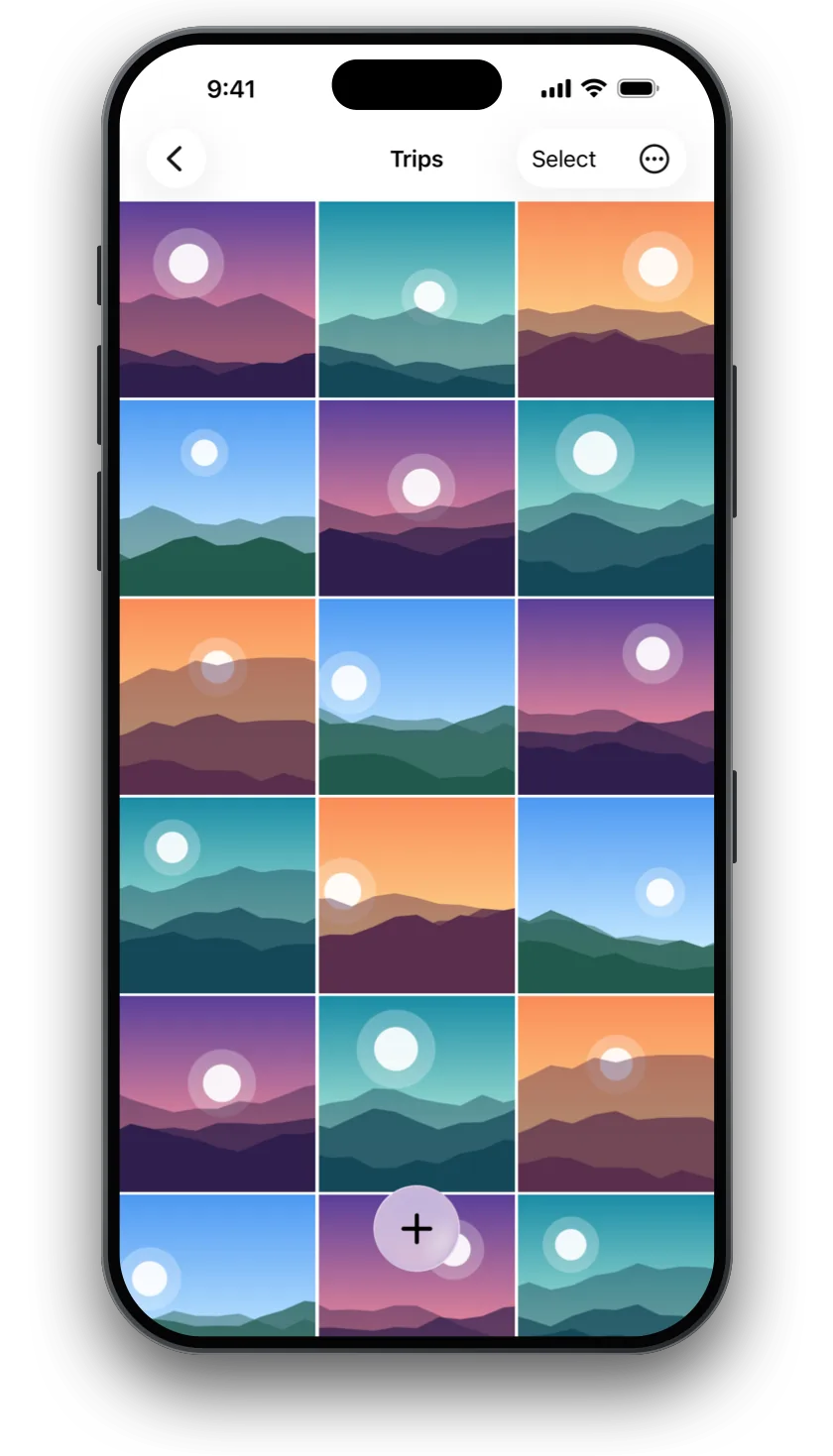
- Tap + › Add from Photos and pick the photos. SwiftLocker keeps its own copies, encrypted on your iPhone.
- To clear the originals as you go, turn on Settings › Ask to remove originals from Photos. Then empty Collections › Recently Deleted in Photos.
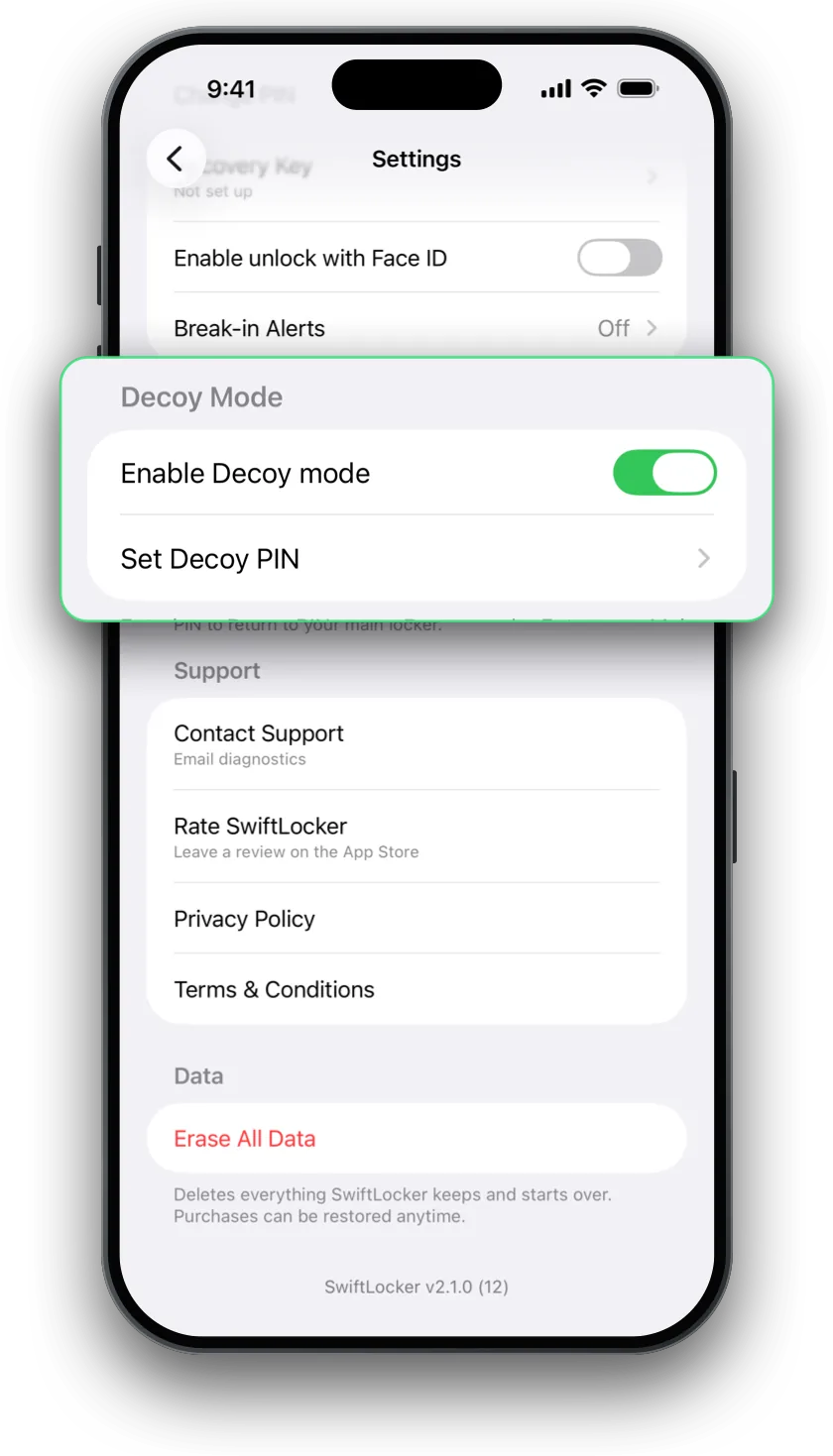
For when someone asks to see, a decoy PIN opens a second vault with only what you put there (Premium). Here's how a decoy PIN works.
A PIN only you know. SwiftLocker can't reset a forgotten PIN, by design. Turn on iCloud sync or save a backup, so your photos can come back (Premium).
Questions
Can you lock photos on iPhone?
Yes. Photos you hide go to the Hidden album, which is locked by default. Since iOS 18, you can also lock the whole Photos app. Both open with Face ID, Touch ID or your iPhone passcode.
Can I lock photos with a code my passcode doesn't open?
Not with the built-in locks. SwiftLocker opens with a PIN of its own, separate from your iPhone passcode, plus Face ID or Touch ID.
Does locking Photos lock it on my iPad too?
No. A locked app is locked only on that device. The lock doesn't sync with iCloud.
Can I hide the Photos app?
No. Only apps from the App Store can be hidden. You can lock Photos, and hide the Hidden album in Settings › Apps › Photos.
Is SwiftLocker free?
Yes. Hiding photos, videos and documents behind your PIN, Face ID or Touch ID, encryption, scanning, search, Trash and Find Duplicates are free, with three folders of your own. Premium adds the decoy vault, iCloud sync, backups, unlimited folders, Break-in Alerts and app icons in five colors.