 SwiftLocker
A private photo vault made for iPad
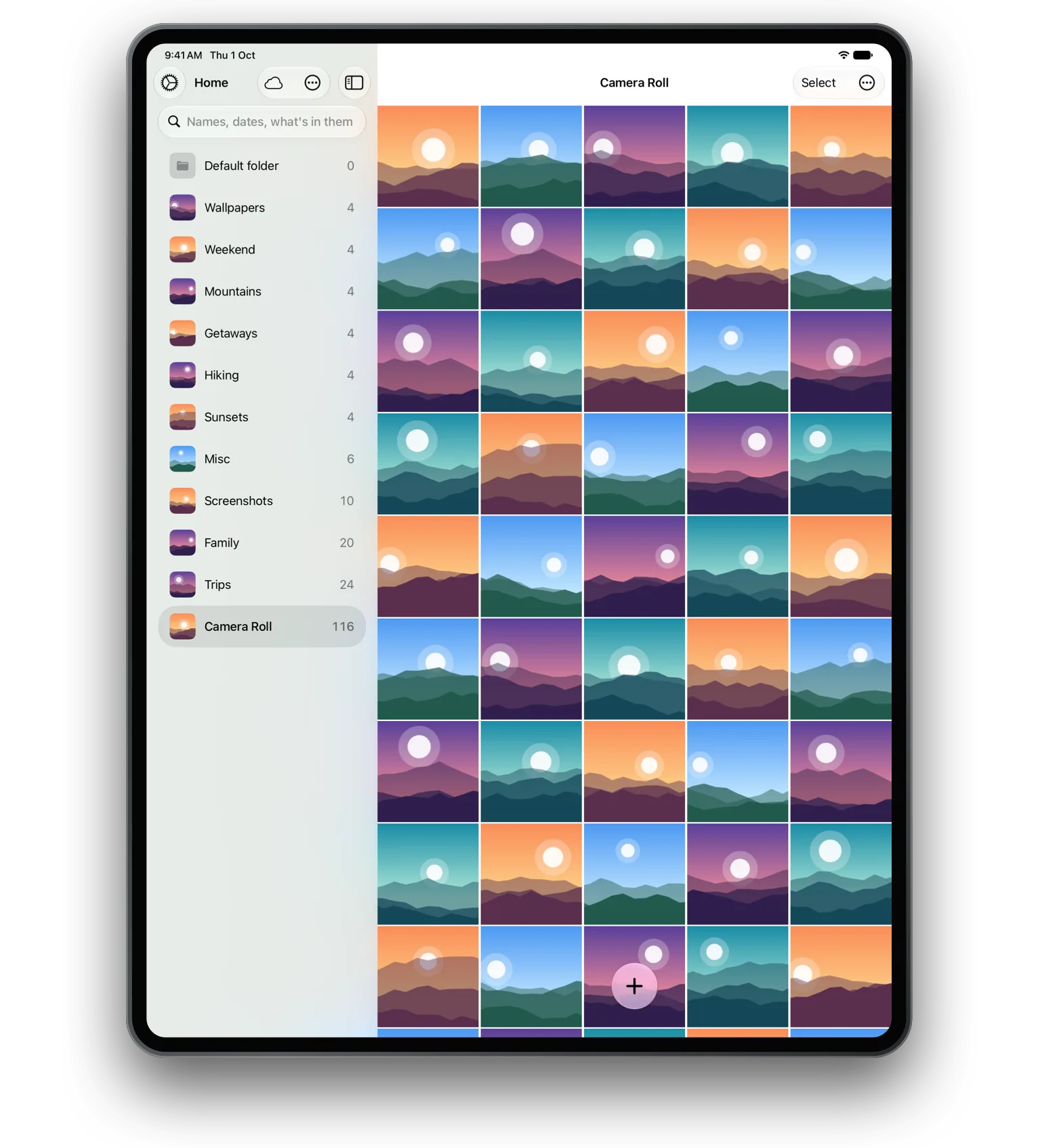
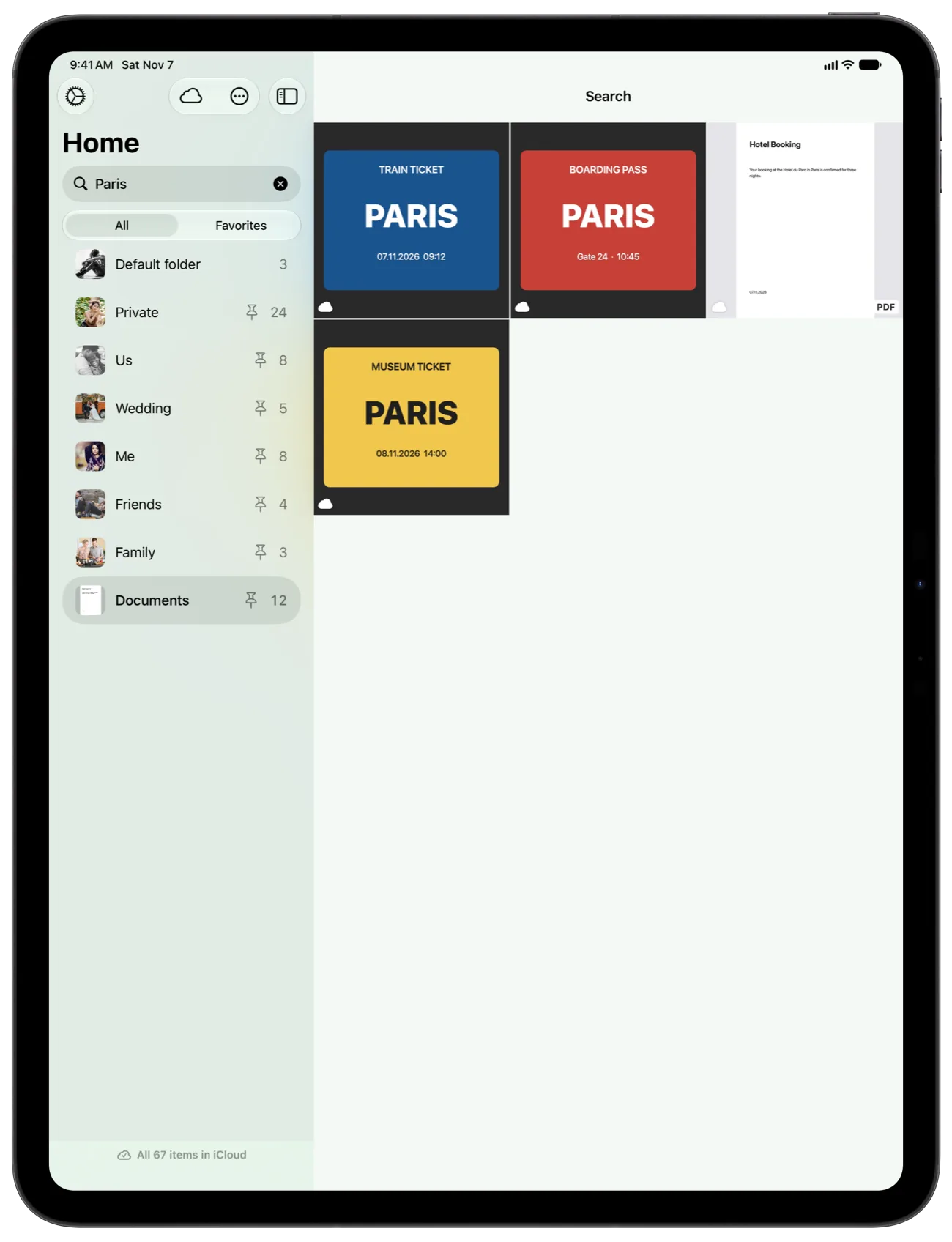
SwiftLocker is made for iPad as well as iPhone. Your folders sit in a sidebar beside your photos, and it works with several windows, drag and drop and a keyboard. It locks with a PIN of its own, plus Face ID or Touch ID. It's for anyone who keeps private photos and documents on an iPad.
How it works
- Install SwiftLocker on your iPad and set your PIN. If you have Premium, restore it from Premium › Restore Purchases.
- Pick a folder in the sidebar. Its photos, videos and documents fill the rest of the screen.
- Drag photos, videos and files in from other apps. Drop them on a folder in the sidebar or on the folder on show.
- Drag items out to give another app a copy. Dropped on another folder in SwiftLocker, they move there instead.
- With a keyboard, press ⌘I to import photos, ⇧⌘N for a new folder and ⌃⌘L to lock SwiftLocker.

Good to know
- Several windows, one lock. Open SwiftLocker in more than one window. They share one lock, so a window going to the background doesn't lock another still in front.
- A shield for each window. A window that goes to the background is covered at once, before the app switcher takes its picture.
- One vault on both. With iCloud sync (Premium), your iPhone and iPad share one vault, end-to-end encrypted.
Questions
Does SwiftLocker work on iPad?
Yes. It's made for iPad, with folders in a sidebar, several windows, drag and drop and keyboard shortcuts.
Can my iPhone and iPad share one vault?
Yes, with iCloud sync, part of Premium. On both, open Settings › Cloud Sync and turn on Sync to iCloud with the same Apple Account.
Do I have to buy Premium again for iPad?
No. Premium belongs to your Apple Account. On iPad, restore it from Premium › Restore Purchases.
Does it unlock with Face ID or Touch ID on iPad?
Yes, with whichever your iPad has. Turn it on in Settings › Security. Your own SwiftLocker PIN always works too.
Which keyboard shortcuts are there?
New Folder (⇧⌘N), Import Photos (⌘I), Import from Files (⇧⌘I), Settings (⌘,) and Lock SwiftLocker (⌃⌘L).