 SwiftLocker
Decoy PIN: A second vault for prying eyes
Sometimes someone asks to see your phone, and saying no isn't easy. A decoy PIN opens a second vault with only what you put there, while your real vault stays hidden. It's for anyone who wants a calm answer to “show me”. The decoy PIN comes with SwiftLocker Premium.
How it works
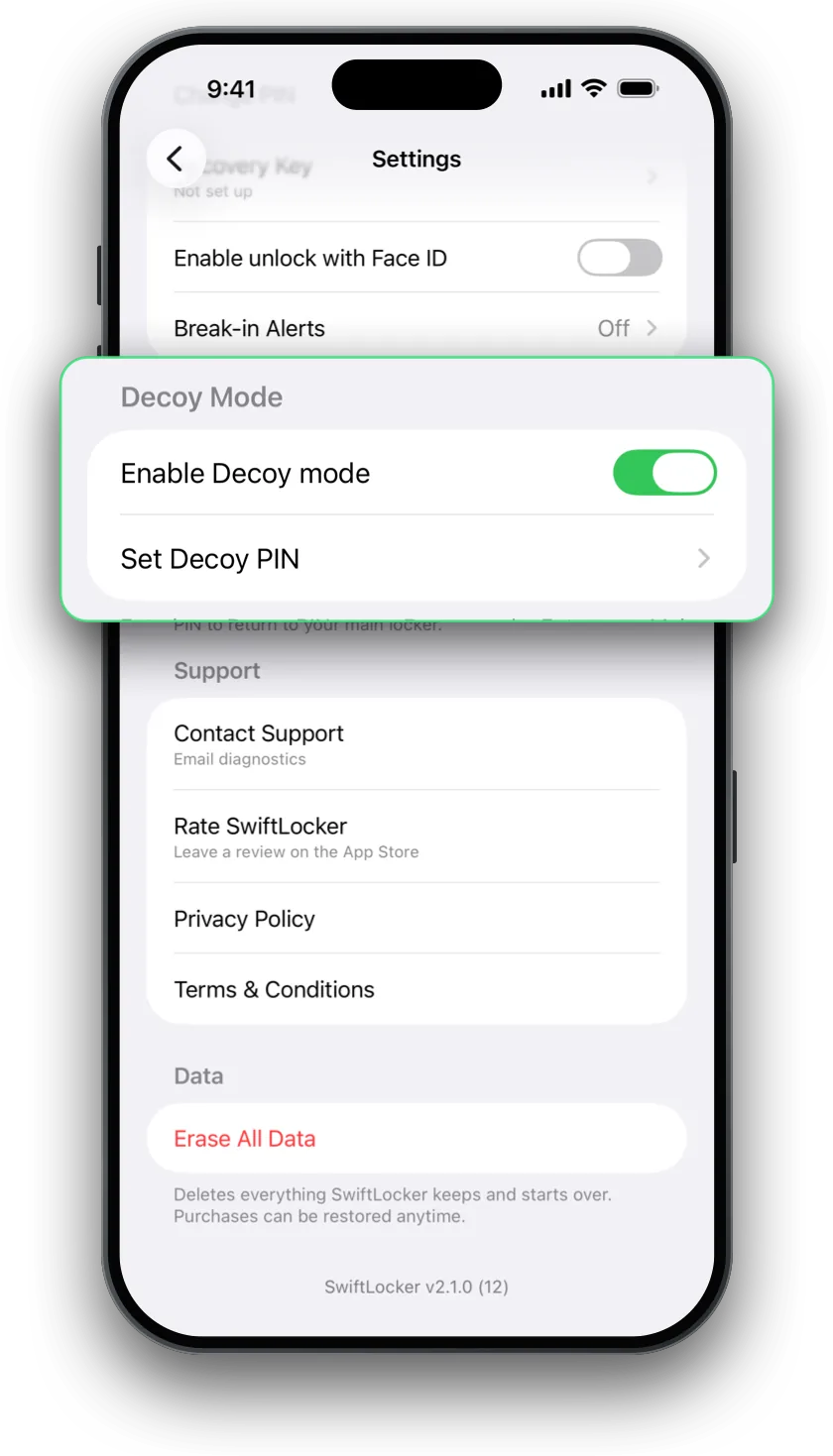
- Open Settings › Decoy Mode and turn on Enable Decoy mode.
- Tap Set Decoy PIN and enter your main PIN. Then choose a different PIN for the decoy, and enter it again to confirm.
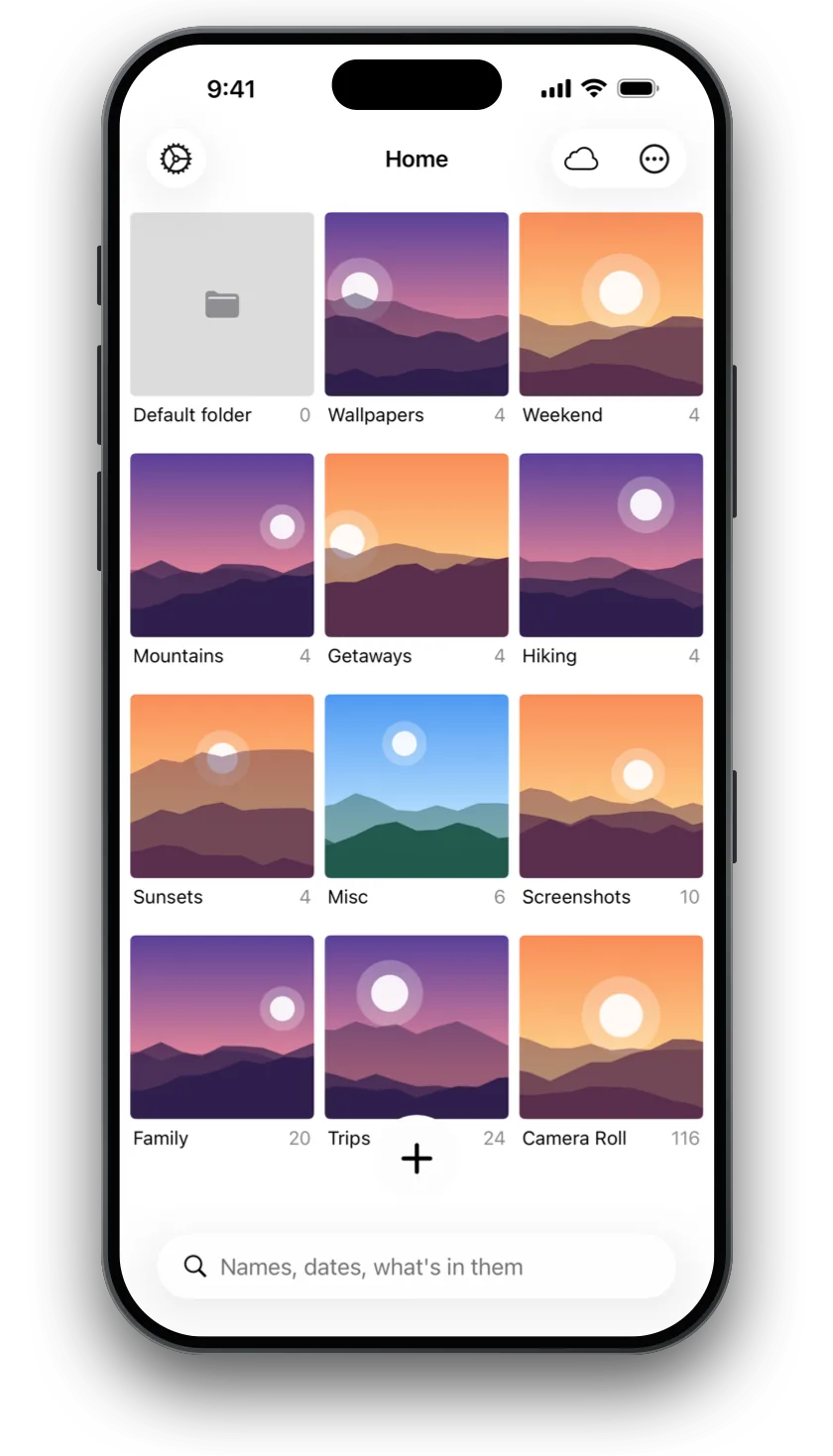
- Tap Switch to Decoy mode and add a few everyday photos, so the decoy vault looks lived in.
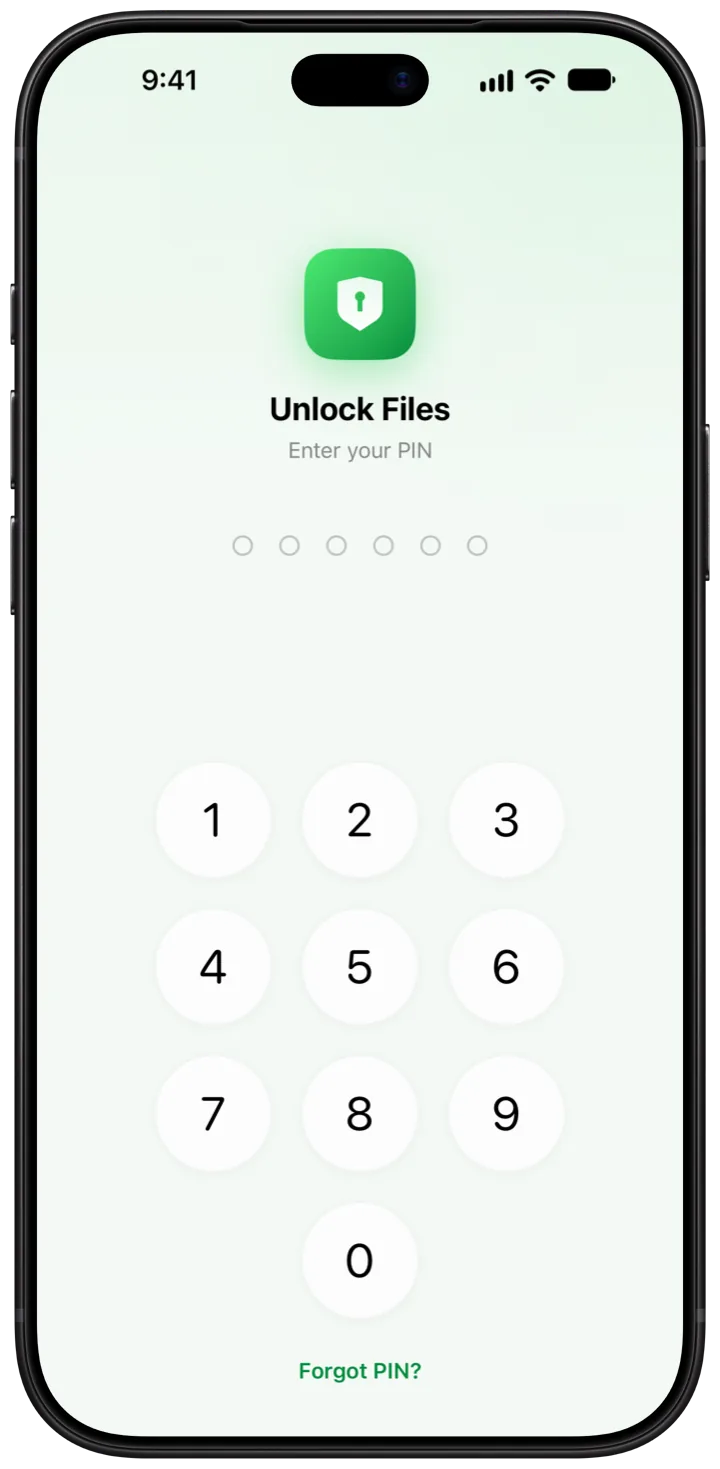
- From now on, one lock screen takes both PINs. The decoy PIN opens the decoy vault. Your main PIN opens your real one.
Good to know
- Nothing gives it away. Nothing in the decoy vault shows that another one exists. Home's iCloud status line isn't shown in decoy mode either.
- A key of its own. The decoy vault has its own encryption key. In decoy mode, SwiftLocker loads only that key, so it can't read your real vault.
- Two different PINs. SwiftLocker won't accept a decoy PIN that matches your main PIN or the start of it, so the two can't be confused.
- Back to your vault. To leave decoy mode, enter your main PIN at the lock screen.
Questions
What is a decoy PIN?
A second PIN that opens a separate vault. You fill it with harmless photos. Your main PIN still opens your real vault.
Can someone tell that there's a second vault?
Nothing in the decoy vault shows that another one exists. It has its own encryption key, and in decoy mode SwiftLocker can't read your real items.
Can the decoy PIN be like my main PIN?
No. SwiftLocker won't accept a decoy PIN that matches your main PIN or the start of it.
How do I get back to my real vault?
Enter your main PIN at the lock screen.
Is the decoy PIN free?
It comes with SwiftLocker Premium, monthly, yearly or once for life. Hiding photos behind your own PIN, plus Face ID or Touch ID, is free.